Comparing Histograms
In some cases, you may need to compare the histograms of images.
Right-click two or more selected images in the Data Properties and Settings panel and then choose Compare Histograms in the pop-up menu to open the Compare Histograms dialog, shown below.
Comparison of normalized and original image data
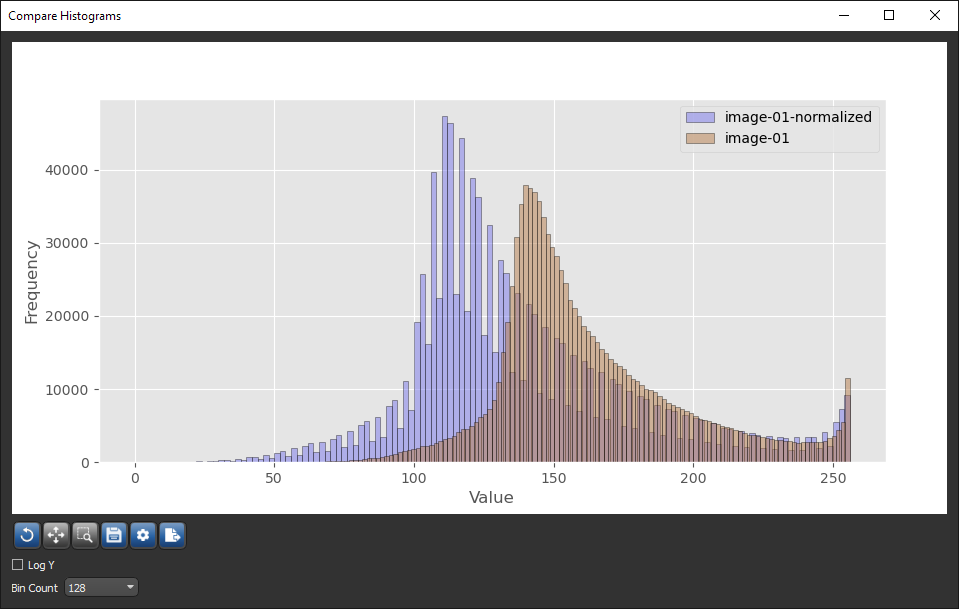
The following options are available for comparing histograms of image data.
| Description | |
|---|---|
| Histogram | Displays the plotted values, in which each column represents a range of the values and the height of a column corresponds to how many values are in that range. |
| Plotting tools | Let you to pan, zoom, and reset the histogram, as well as save the figure and export the plotted values in the comma-separated values (*.csv extension) file format (see Plotting Tools). |
| Y log | If selected, the Y-axis will be plotted in log scale. |
| Bin count |
Determines the interval in which values will be binned.
Note It is especially important to specify the optimal bin size. Bins that are too wide can hide important details about distribution while bins that are too narrow can cause spikes just by coincidence. |
- Select the image data that you want to compare in the Data Properties and Settings panel.
- Right-click and then choose Compare Histograms in the pop-up menu.
The Compare Histograms dialog appears with the selected plots.
Note You can use the plotting tools to pan, zoom, and reset the histogram, as well as save the figure and export the plotted data (see Plotting Tools).
 Plotting Tools
The tools available at the bottom of the Histogram dialog let you to pan, zoom, and reset the histogram, as well as save the figure and export data.
| Item | Icon | Description |
|---|---|---|
| Pan |

|
Pans or zooms the figure as described below.
Pan… Click with the left mouse button and then drag to pan the figure. Zoom on the Y axis… Click with the right mouse button and then drag up and down to Zoom in and Zoom out on the Y axis. Zoom on the X axis… Click with the right mouse button and then drag left and right to Zoom in and Zoom out on the X axis. |
| Zoom |

|
Zooms to a drawn rectangle, which can be defined by dragging your cursor over the area that you want to zoom. |
| Reset |

|
Resets the original view of the figure. |
| Save |

|
Saves the figure as a bitmap image, vector graphic, or in the PDF file format. The figure can also be saved as raw data or PGF code.
Standard image files (*.jpeg, *.jpg, *.png, *.tif, *.tiff extensions)… Saves the histogram or profile as a bitmap image in the screen resolution. Postscript files (*.eps, *.ps extensions)… Saves the histogram or profile as an encapsulated postscript or postscript file. These types of files have a selectable resolution and provide high-quality graphics for publications. PGF code for LaTeX (.pgf extension)… Saves the histogram or profile in the Portable Graphics file format. The standard LaTeX picture environment can be used as a front end for PGF merely by using the Raw RGBA bitmap (*.raw, *.rgba extensions)… Saves the histogram or profile as a raw bitmap image file, in which the file contains only a list of pixel colors and nothing else. Scalable vector graphics (*.svg, *.svgz extensions)… Saves the histogram or profile in an XML-based vector image format. The SVG specification is an open standard developed by the World Wide Web Consortium (W3C). SVG images and their behaviors are defined in XML text files. Portable document format (*.pdf extension)… Saves the histogram or profile in the Adobe PDF file format. |
| Settings |

|
Opens the Figure options dialog, shown below, in which you can select the plotted ranges, scaling, and labels for the axes.
|
| Export to CSV |

|
Exports the plotted values in the comma-separated values (*.csv extension) file format. |

